Cutting Die
IMPORTANT: This feature is just a helper! ALWAYS consult the print service provider of your project for the required output, style, geometry, size and position of the cutting die!
In some projects, the index tabs have to be finished with cutting dies for the print version of a catalogue.
To support this task, a layout rule [accpack_Index_Tabs] Add Cutting Die is provided, that will create cutting die geometries (parameter selection: lines or rectangle area) around the created tab and assign the selected object style (another parameter) to these elements.
These created objects will get the script tagaccpack_index_tab to be handled by the script as part of the tabs and will be re-created with each script execution.
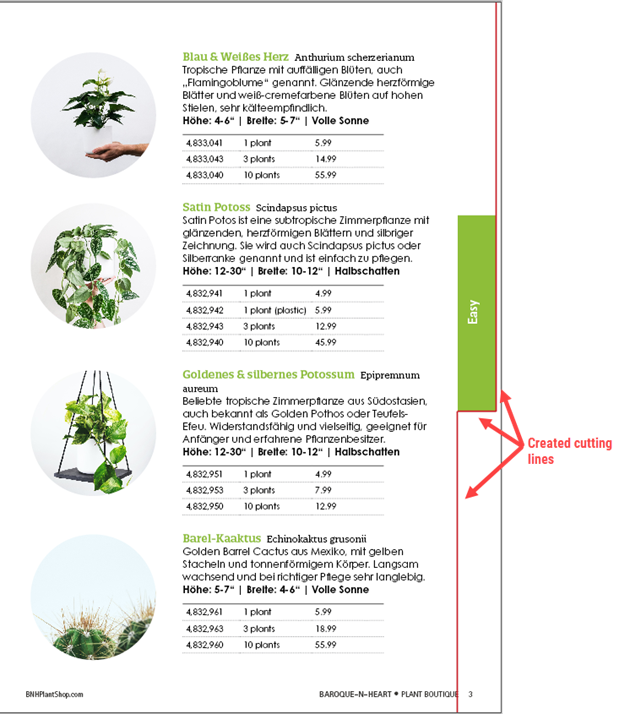
How It Works
The layout rule creates its geometries relative to the bounding box of the tab frame and the page bleed values.
Lines geometry creates three separate line elements:
- A vertical line on the right edge of the tab, running from the top bleed down to the tab bottom minus Margin Tab Bottom.
- A horizontal line at the tab bottom minus Margin Tab Bottom, running from the inner edge minus Margin Inner Page to the right edge.
- A vertical line on the inner edge minus Margin Inner Page, running from the tab bottom minus Margin Tab Bottom down to the page bottom plus bleed.
Area geometry creates one rectangle frame. Its bounds run from the inner edge minus Margin Inner Page and tab bottom minus Margin Tab Bottom, to the right edge and page bottom plus bleed.
All created elements are tagged with accpack_index_tab and grouped with the tab frame via Comet group. They are placed on the "Cutting Die" layer and re-created on every script run.
Margin parameters 3 and 4 are specified in millimetres and converted to points by the script.
Layout Rule Parameters
The template creator can set the following parameters in the layout rule [accpack_Index_Tabs] Add Cutting Die:
- Objectstyle: this parameter provides a dropdown of all available object styles of the document. The template creator can select the one created in the parent document. This style will be assigned to all cutting die elements this layout rule creates
- Geometry: the typical geometry for cutting dies is the line. But in some cases, the area to be cut away should be marked instead (area below the tab). This parameter allows to switch the geometry from line to area
- Margin Tab Bottom: When working with background colors, you might want to have a margin between the bottom edge of the tab frame to cut away a little bit more to make sure to have a clean edge cut. This margin can be defined in mm.
- Margin Inner Page: the same goes for the cutting die position between the left edge of the tab and the inner page, e.g. when working with page filling images on chapter entry pages