What You Can Achieve
Catalogues often contain so-called index tabs. These are used to help readers quickly locate chapters. The tabs can be positioned on the left, on the right or on both sides of the spread.
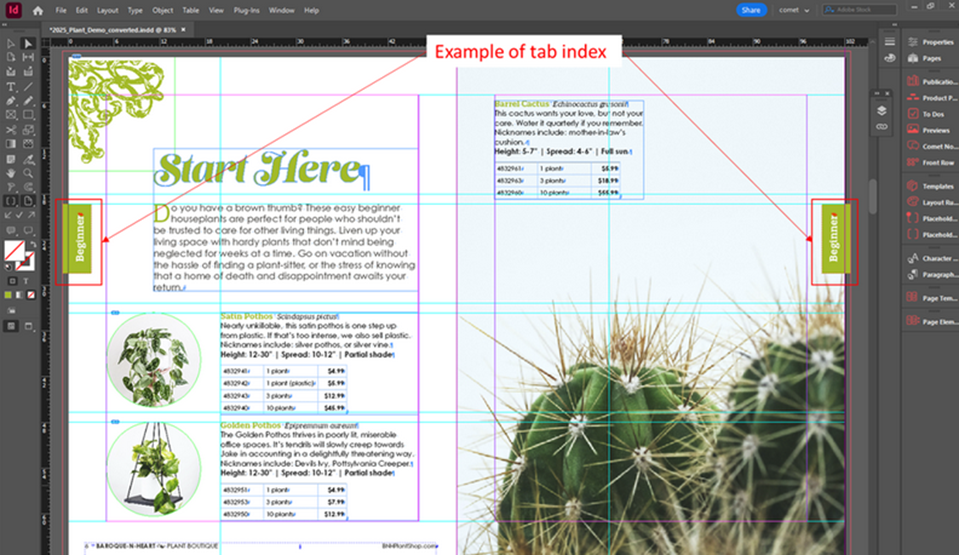
This Acceleration Package standardizes the implementation of tabs for project executions and provides a higher level of automation for users when working with tabs.
Check the examples below to see if the AccPack can help you in your project.
If you're ready to get started, install the AccPack and follow our step-by-step templating guideline.
If you need more information about
Example 1
This example shows index tabs on both left and right pages with the active tab being highlighted and inactive tabs shown.
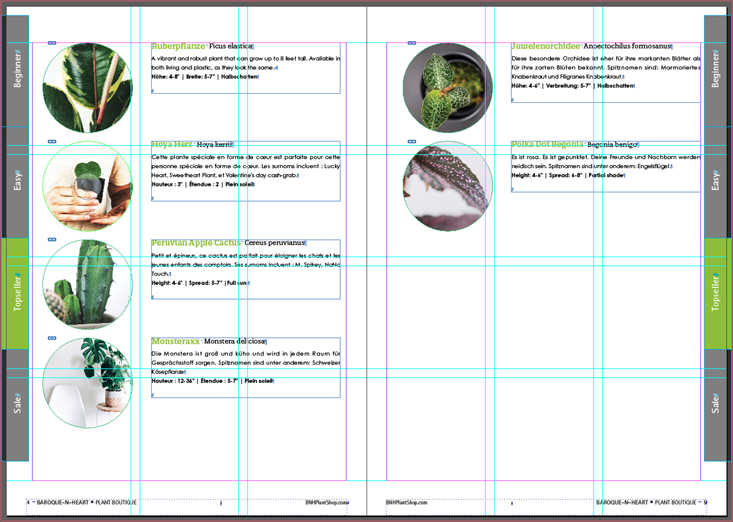
Usage: yes
Orientation: Left/Right
Show All Tabs: yes
Example 2
This example shows index tabs on both left and right pages with only the active tab being shown.
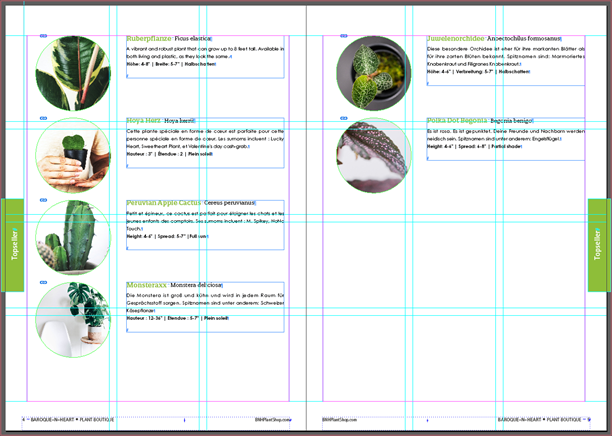
Usage: yes
Orientation: Left/Right
Show All Tabs: no
- Only the index tab is shown, the document belongs to. All others will not be displayed.
Example 3
In this example all tabs are shown, but only on the right page.
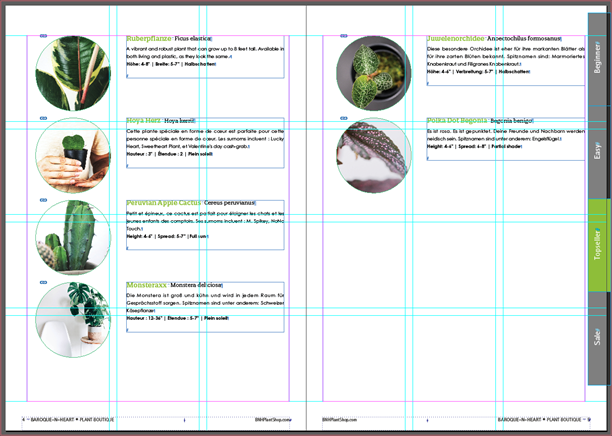
Usage: yes
Orientation: Right
- Tabs are shown on the right sided pages of the document only
Show All Tabs: yes
Example 4
In this example no tabs are shown, so the feature is completely disabled for these pages.
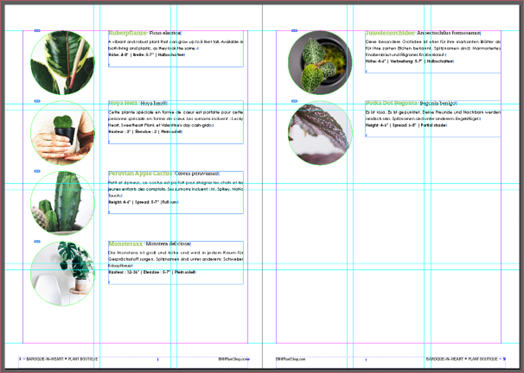
Usage: no
- No tabs are displayed on the pages of the document
Orientation: Right
Show All Tabs: yes
Example 5
In this example we are showing all tabs, however we introduce a distance between the tabs.
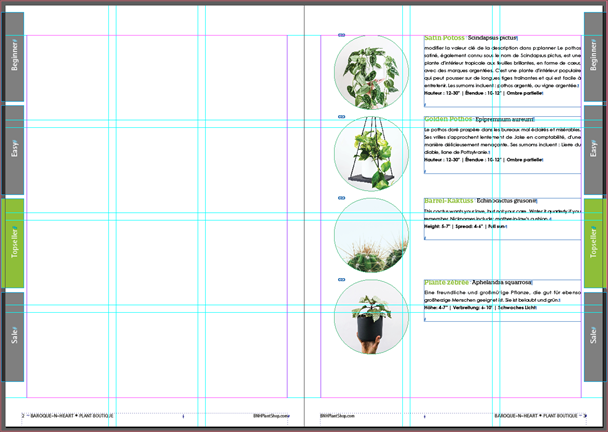
Usage: yes
Orientation: Left/Right
Show All Tabs: yes
Autosize: yes
- Tabs are resized according to the available area including defined distance between them
Distance Tab: 3.0
Example 6
In this example we deactivated the auto-size functionality. This can be useful when the size of the template needs to be retained.
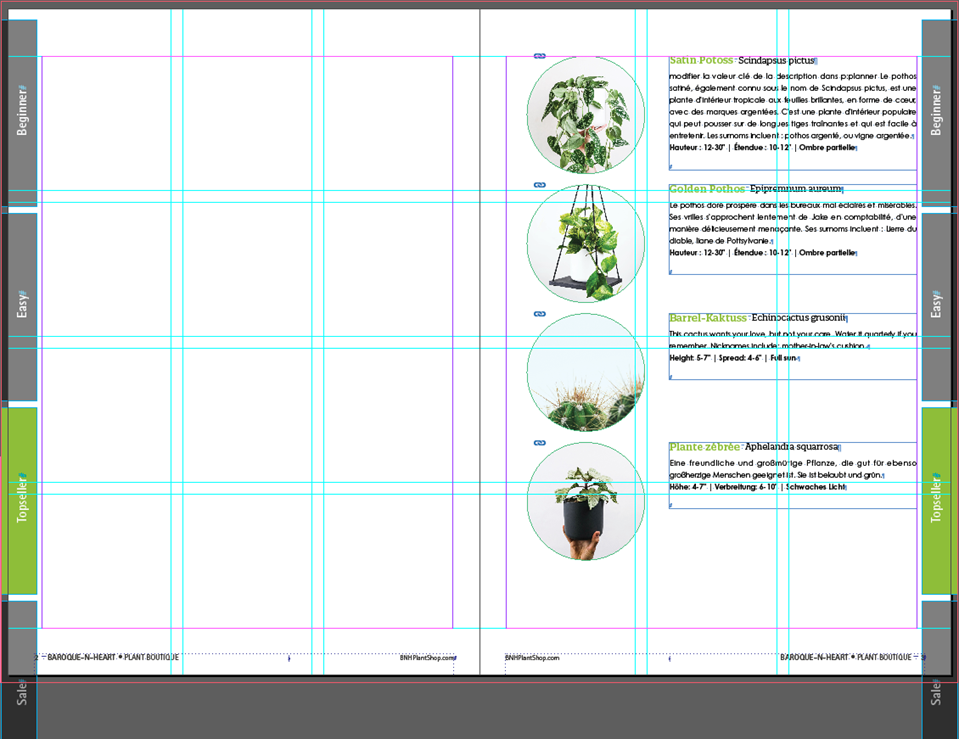
Usage: yes
Orientation: Left/Right
Show All Tabs: yes
Autosize: no
- Template size will be used, in this example the tabs don't fit on the page
Distance Tab: 3.0