Import image via system volume
UPLOAD_IMAGE_BY_SYSTEM_VOLUME is a Camunda process that uploads image files into a server volume backed by object storage (S3, cloud storage, MinIO). It runs on its own, or as a sub-process of the data import.
The data import writes media assets that reference an image by path and filename. This process puts the matching image files into the volume those paths point to.
Prerequisites
- A running Publishing Server with the AccPack installed. See Installation and Configuration.
- The Camunda process
Upload Image To Volumedeployed and active. - A server volume with the
object-storagetag. See Server Volume Configuration.
Process Flow
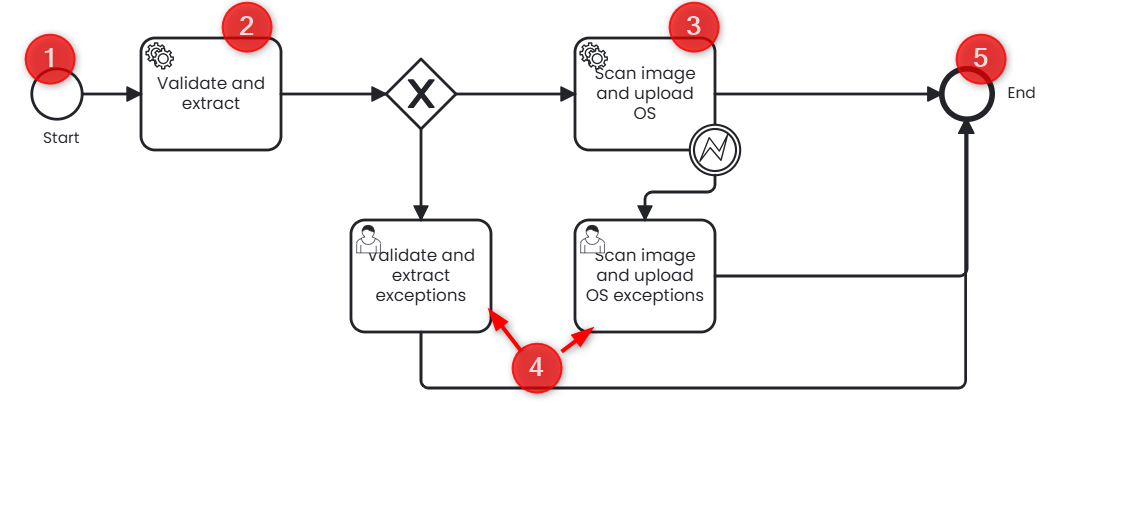
| Step | BPMN element | Type | Description | Input | Output |
|---|---|---|---|---|---|
| 1 | Start | Start event | Shows the form after the user selects the process | System volume, image file | Process variables |
| 2 | Validate and extract | Service task | Validates the uploaded data and extracts the ZIP file if needed | Image or ZIP file | Validation result |
| 3 | Scan image and upload OS | Service task | Checks that each file is an image, then uploads it to the volume | Image files | Files stored in the volume |
| 4 | Exceptions | User task | Reports failures from validation, extraction, or upload | Invalid data | Exception message |
| 5 | End | End event | Process finished | None | None |
Process Inputs
| Input | Description |
|---|---|
| Choose A Volume | The target server volume. The list shows the volumes defined in the server volume configuration. |
| Upload Image | A single image file, or a ZIP archive containing a flat directory of images. |
Supported file types: PNG (.png), JPEG (.jpeg) and ZIP (.zip). Maximum upload size is 1000 MB.
The process rejects any file in the archive that is not an image and reports it as an exception.
Image ZIP file structure
The importer verifies that the referenced media asset path exists within one of the configured server volumes.
If the referenced path cannot be resolved, the data import continues without interruption. Only the media asset is affected: the corresponding image cannot be resolved and is therefore not displayed.
Simple ZIP structure
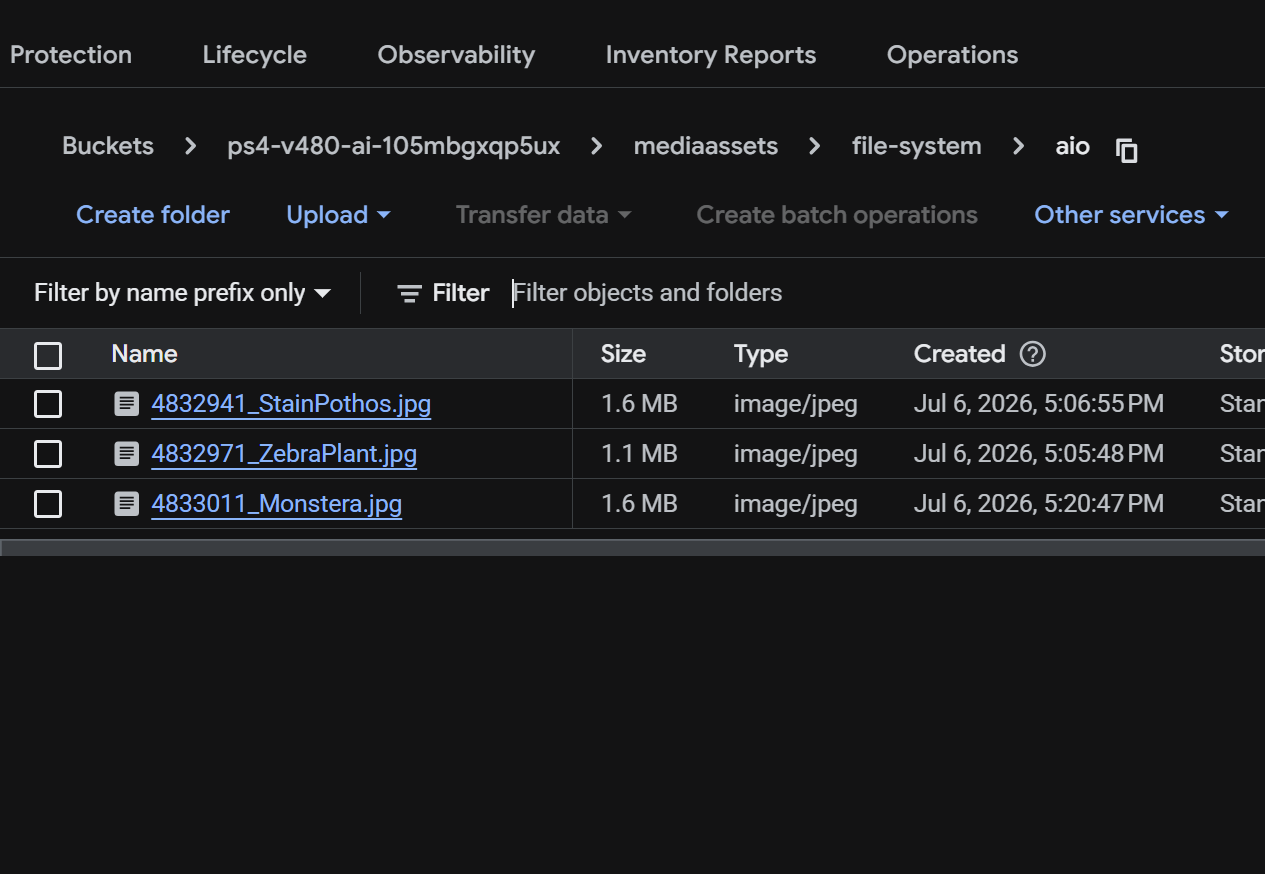
We assume that the images have already been uploaded to the server volume file-system/aio.
With the simple media asset syntax, the import file contains a single media asset column (mainimage). The value must contain the complete path to the image within the configured server volume.
ZIP
chair.jpg
table.jpg
logo.png
The corresponding MediaAsset_Path and MediaAsset_Filename values are:
| MediaAsset_Path | MediaAsset_Filename |
|---|---|
| file-system/aio | chair.jpg |
| file-system/aio | table.jpg |
| file-system/aio | logo.png |
Complex ZIP structure
A ZIP archive may also contain folders. The original folder structure is preserved during extraction and is not flattened.
images/
├── products/
│   ├── chair.jpg
│   └── table.jpg
└── logo.png
The corresponding MediaAsset_Path and MediaAsset_Filename values are:
| MediaAsset_Path | MediaAsset_Filename |
|---|---|
| file-system/aio/images/products | chair.jpg |
| file-system/aio/images/products | table.jpg |
| file-system/aio/images | logo.png |
Entry Points
The process has two entry points. Both take the same inputs and produce the same result.
As a Sub-Process of the Data Import
The Accpack import data process calls this process as a call activity. The Upload Image To Volume checkbox on the import form decides whether the call activity runs.
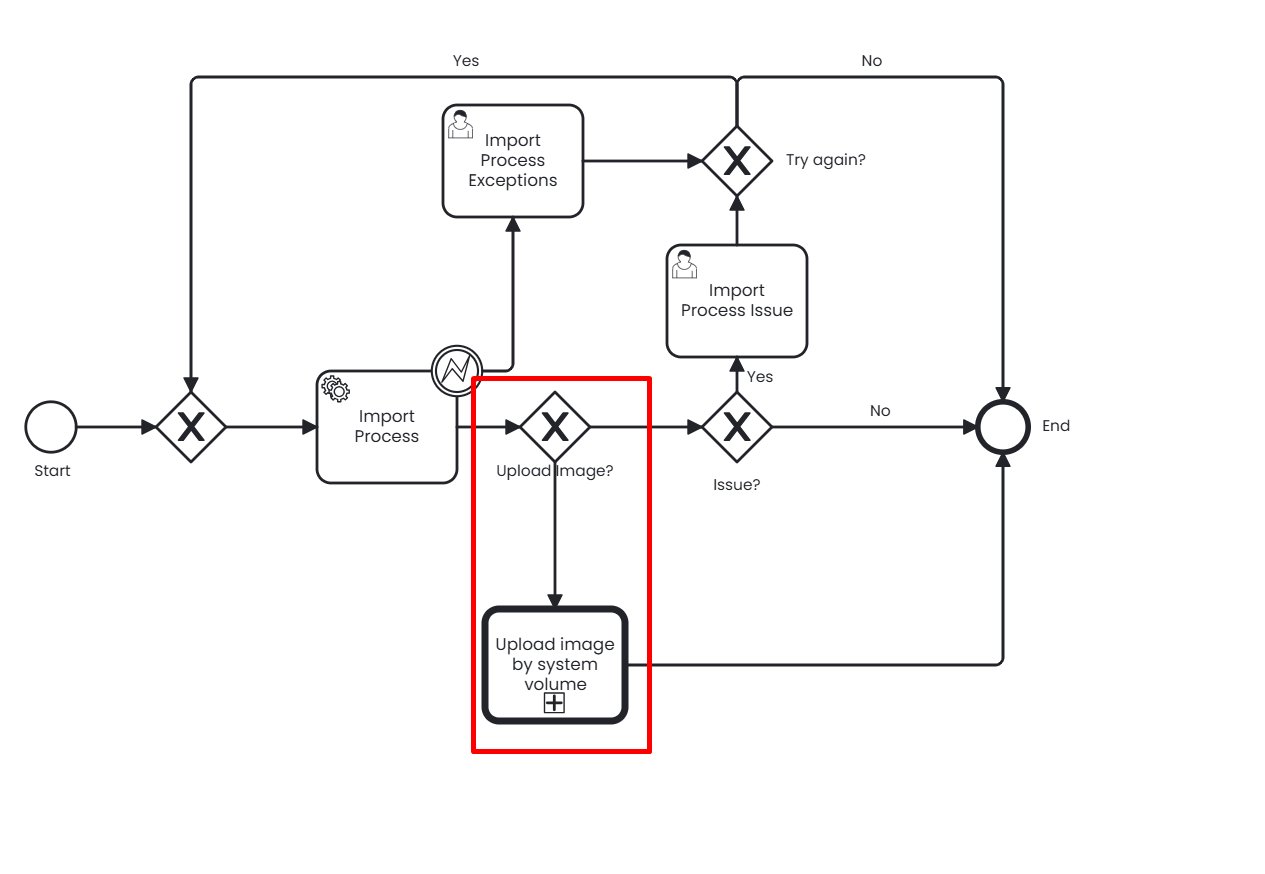
Both processes run in one execution: the data import creates the media assets, then the call activity uploads the image files they reference. The call activity is hidden from the end user, who only sees the checkbox and its parameters on the import form. See Import via AdminUI.
As a Standalone Process
Select the process directly to upload images without importing data, for example when the images change but the product data does not.
- Log in to the AdminUI.
- Navigate to the Processes section.
- Navigate to the Generic Import section.
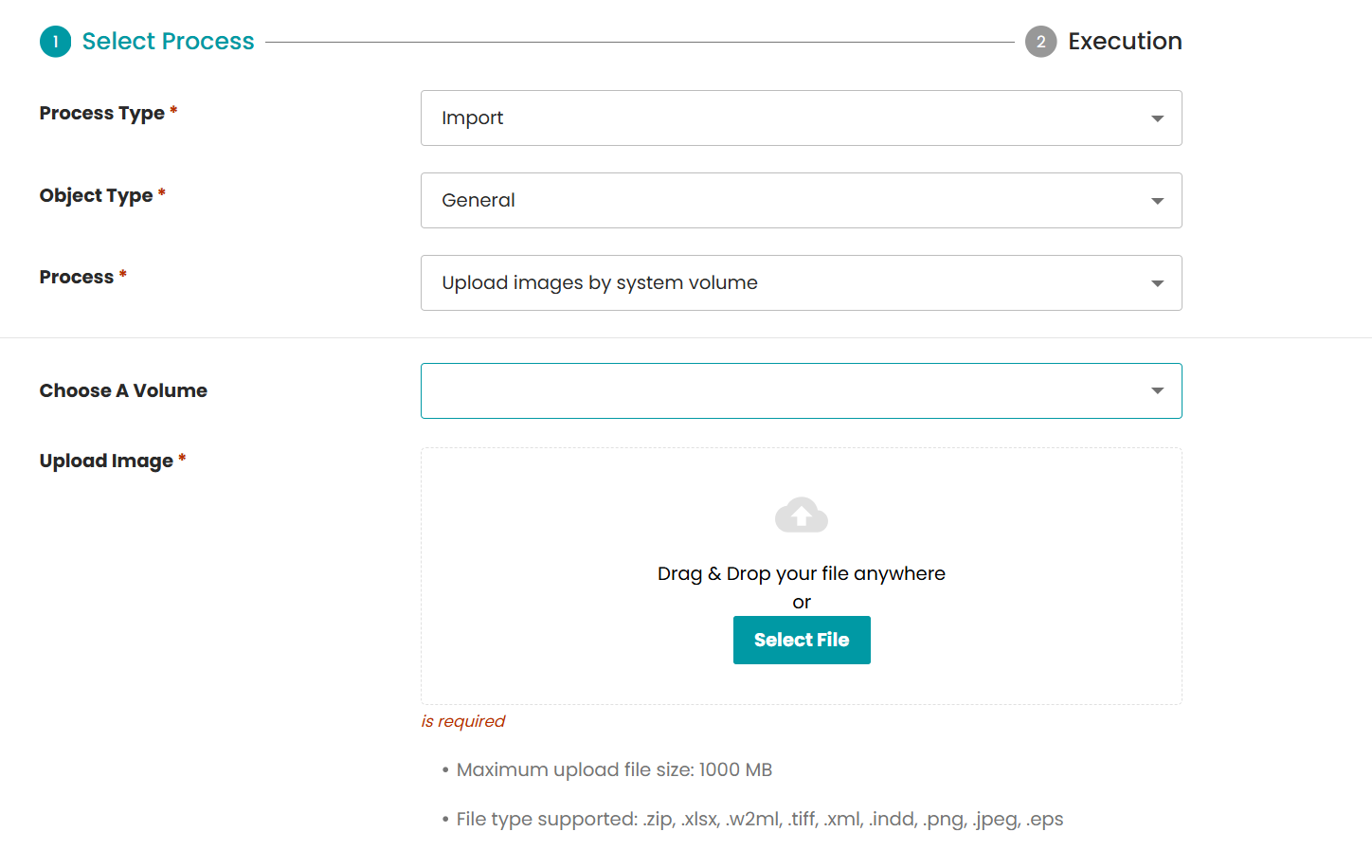
- Set the following options:
- Process Type:
Import - Object Type:
General - Process:
Upload images by system volume - Choose A Volume: the target volume
- Upload Image: your image or ZIP file
- Process Type:
Result
The process uploads the images into the selected volume as a flat list of files. For the system to correctly associate the MediaAsset with the image on object storage file name must match the MediaAsset_path values of the import file.
There is no detection if the images are actually used by the MediaAssets, the upload only serves as a helper to move the files to the object storage. You are responsible for ensuring that the data from the import maps with the images.