HTML Emails
priint:suite projects often include long-running background tasks. Rendering a publication with hundreds of documents takes time. A common requirement is to send an email automatically when a process finishes. This skeleton uses JavaMail to send HTML emails.
Create an HTML template, fill in variables from your process or publication, and add your own stylesheets.
The skeleton can run as a standalone process, but the recommended use is to integrate it into an existing process as a subprocess or call activity.
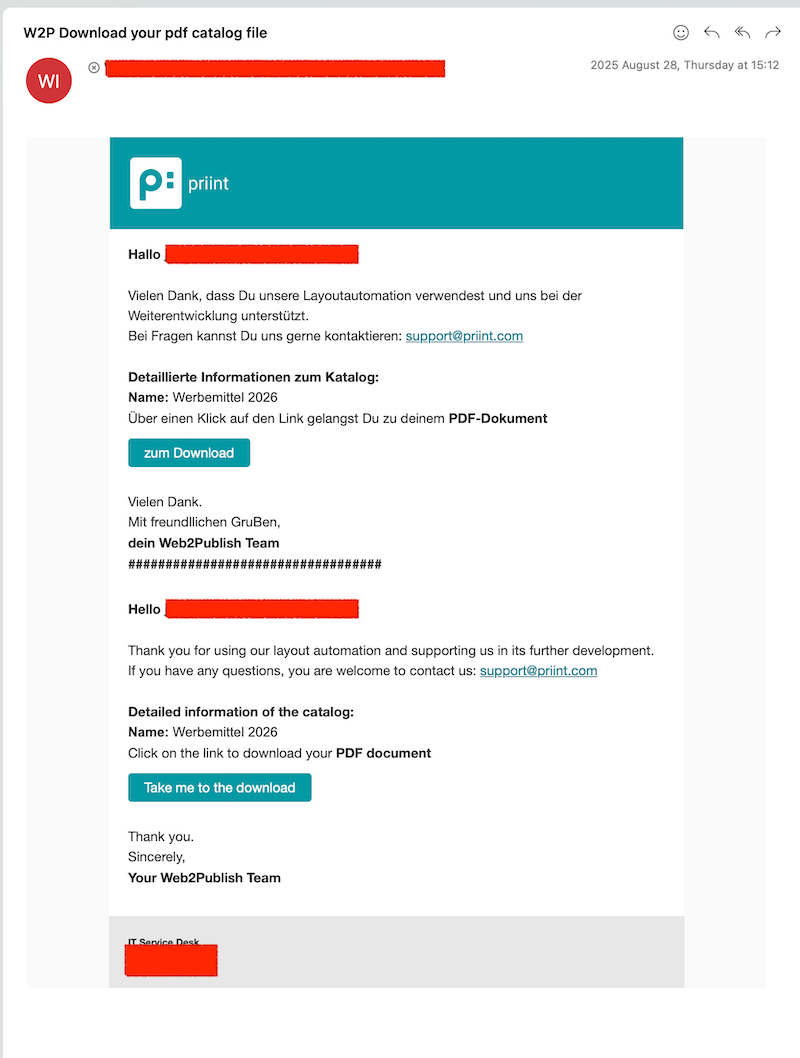
Sample output
Configuration
| Name | skeleton-htmlemail |
| Package | com.priint.skeleton.htmlemail |
| Deployment package | Available on the priint webftp storage, in the priint_suite_accpacks folder under AccPackHtmlEmails. Please contact our support for access. |
To deploy the package, see Using Accelerating Package in your Project. The deployment package installs the plugin. The Camunda process and the ISON configuration must be set up separately, as described below.
Process Definition
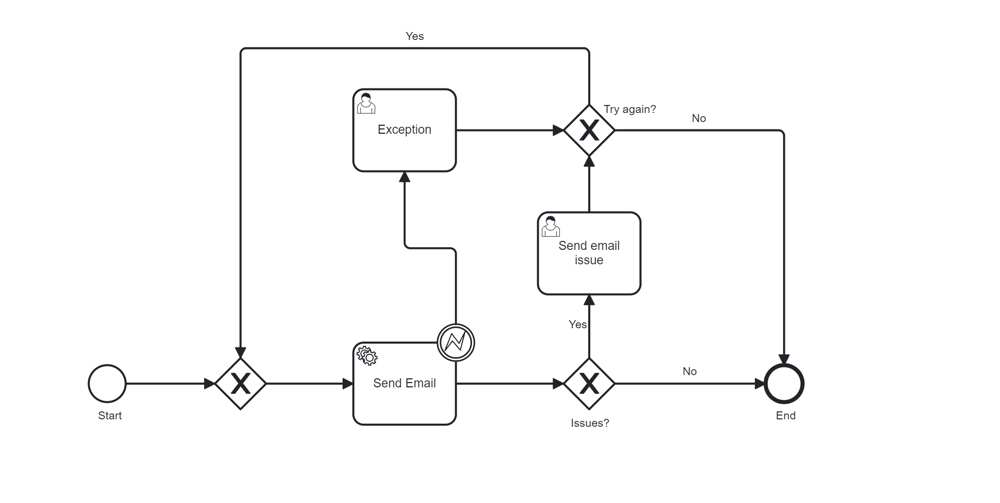
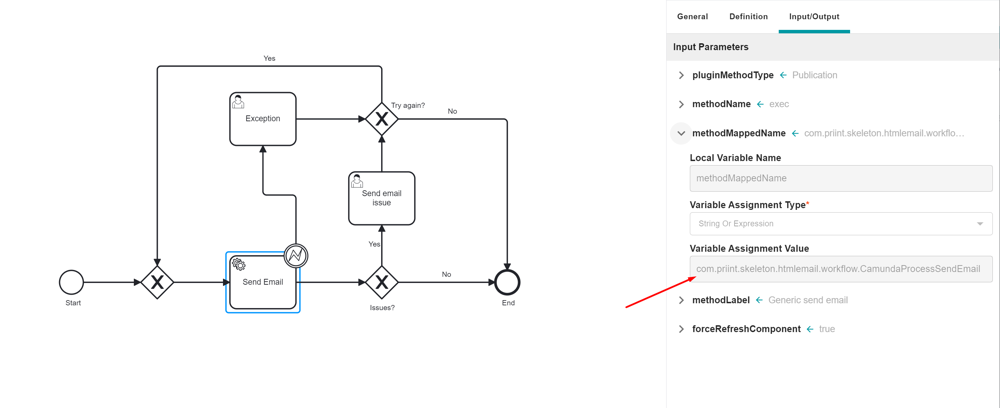
Send Email Plugin
In ISON, add the configuration XML file. It provides:
- The HTML template
- The email settings (sender, recipient, subject, etc.)

The XML file is located in ISON at: com.priint.skeleton.htmlemail.plugin.SendEmailPlugin/Default/default/EmailTemplateConfig.xml
The RootElement should be <emailTemplate> to identify the template and the config inside.
Static Parameters
The root element contains two important child elements: <templateConfiguration> and <config>.
<templateConfiguration>: has two attributes,idandnameid: key to select the HTML contentname: display name (if used as main process)<subject>: subject of the email<content>: HTML content of the email body
<config>: supports<keyValue>tags withidandvalueattributes
Key variables
configId: selects which<templateConfiguration>to usesendFrom: sender address. If blank, uses the sender configured in Payara.
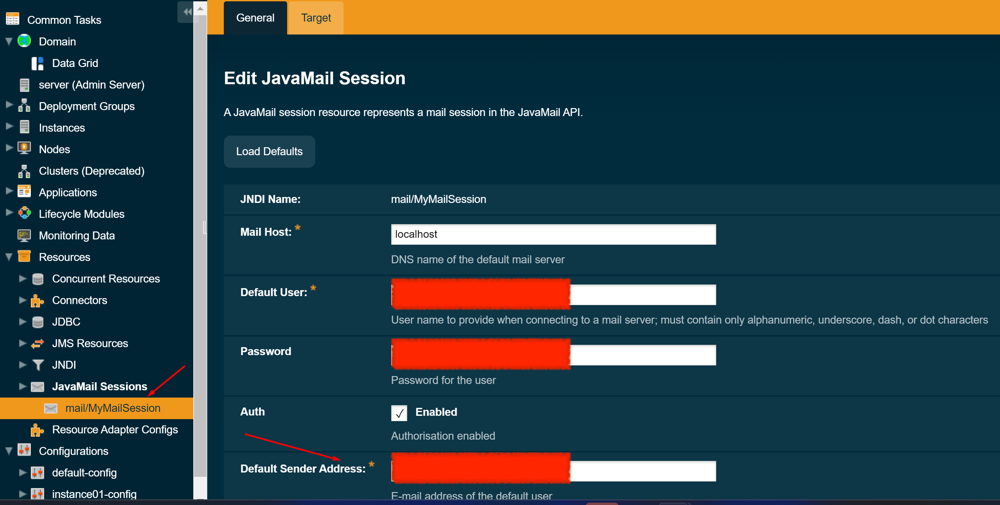
sendTo: recipient address. Defaults to the user who starts the process. Supports multiple recipients **separated by","** — additional addresses are BCC.
XML Template Format
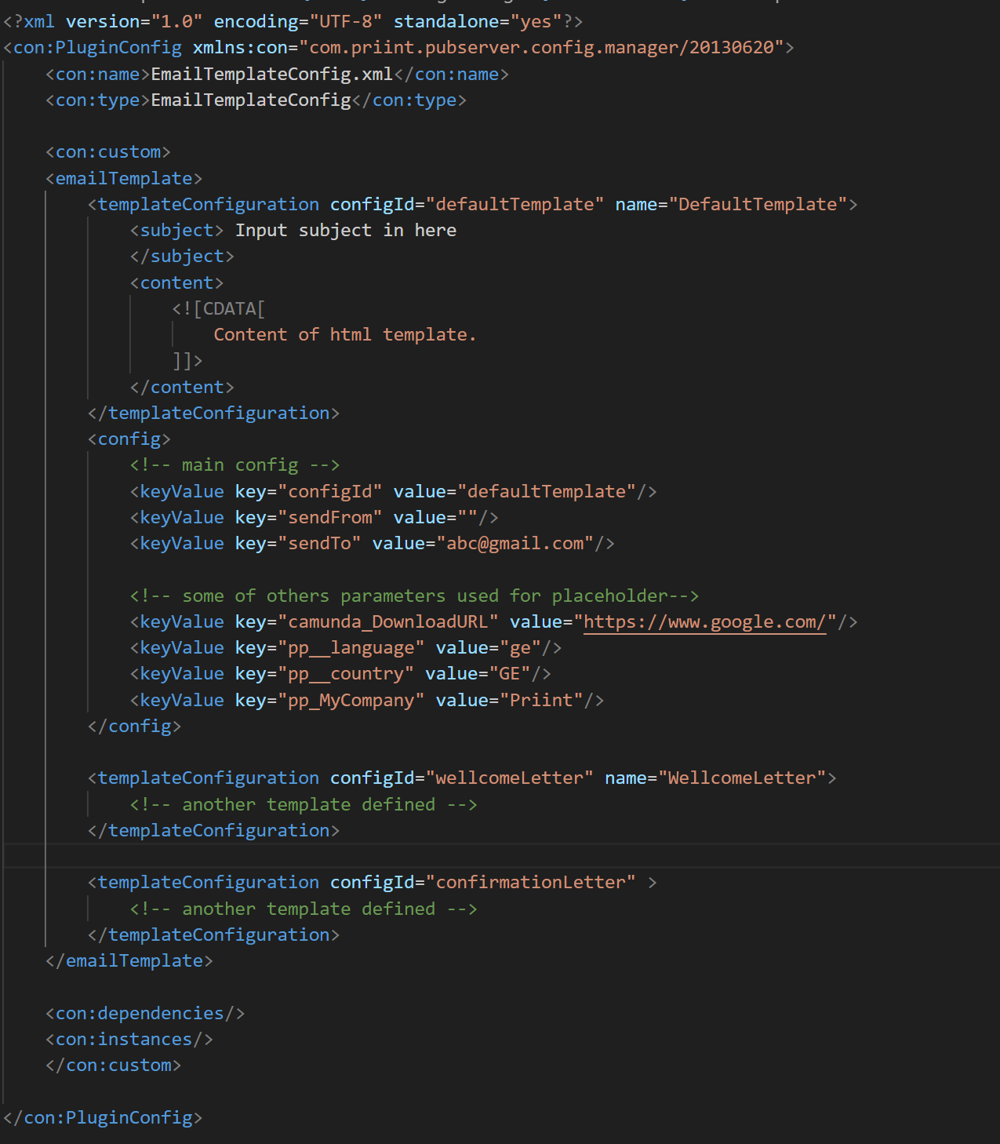
EmailTemplateConfig.xml should be like this.
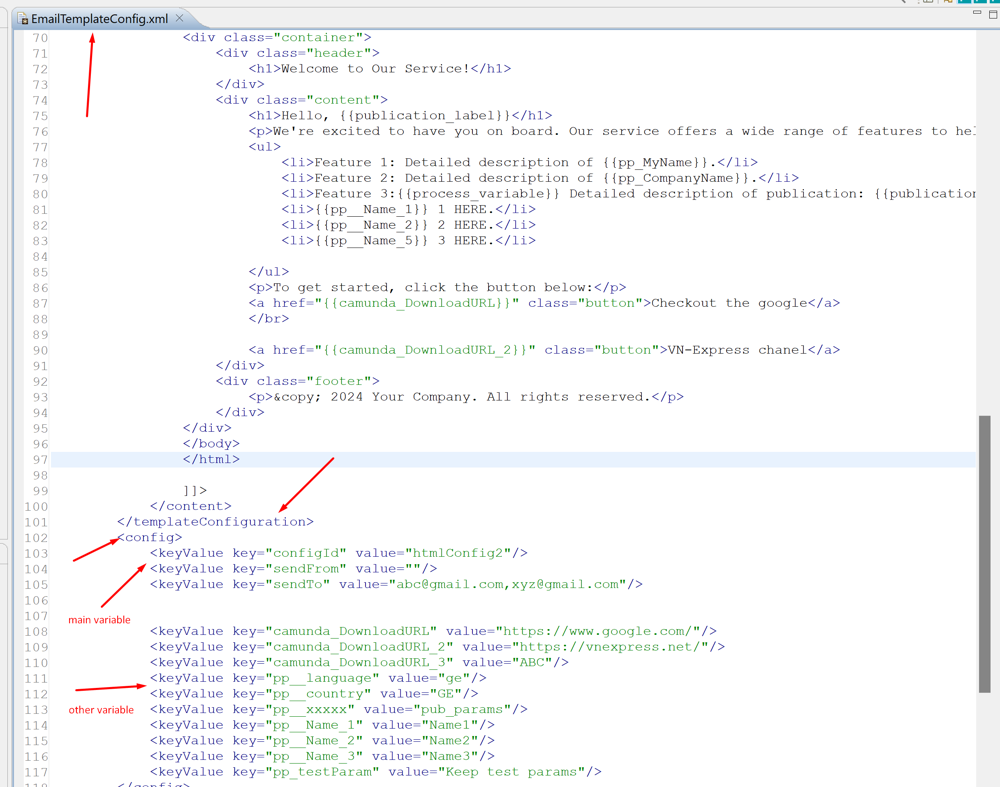
Multiple Configs
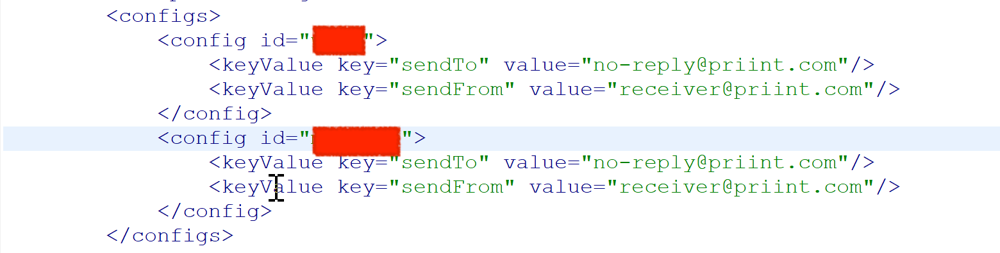
Each <config> is matched to a <templateConfiguration> by its id attribute. Example:
<configs>
  <config id='projecta'>
    <keyValue key="sendTo" value="no-reply@priint.com"/>
    <keyValue key="sendFrom" value="receiver@priint.com"/>
  </config>
  <config id='projectb'>
    <keyValue key="sendTo" value="no-reply@priint.com"/>
    <keyValue key="sendFrom" value="receiver@priint.com"/>
  </config>
</configs>
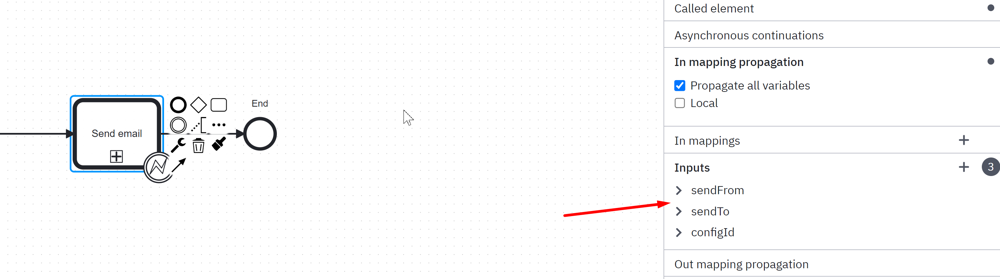
Email properties (sendFrom, sendTo) are resolved in order:
- Input params declared in the Camunda process
- Config defined in ISON
If no properties are found, the process throws an exception.
SMTP Service
Check your project's SMTP configuration before deploying.
If your mail server does not use SSL, remove or deactivate this property:
mail.smtp.socketFactory.class
If authentication is not required, add this property:
mail.smtp.auth: false
and disable authorization.

Parameters
Publication Parameters
Key prefix pp_: parameters with this prefix update the matching publication parameter, if it exists.
Other parameters replace placeholders in the template. Placeholders use the format {{name}}.
Example: Hello, {{camunda_user}}. becomes Hello, John.
Define it in the config as: <keyValue key="camunda_user" value="John"/>
For parameters with multiple values, use numbered suffixes:
pp_identifier_1for value1pp_identifier_2for value2pp_identifier_3for value3
For a single value, use the key without a suffix:
pp_identifier
Document Parameters
Key prefix dp_: parameters with this prefix update the matching document parameter, if it exists.
Other parameters replace placeholders in the template. Placeholders use the format {{name}}.
Example: Hello, {{camunda_user}}. becomes Hello, John.
Define it in the config as: <keyValue key="camunda_user" value="John"/>
For parameters with multiple values, use numbered suffixes:
dp_identifier_1for value1dp_identifier_2for value2dp_identifier_3for value3
For a single value, use the key without a suffix:
dp_identifier
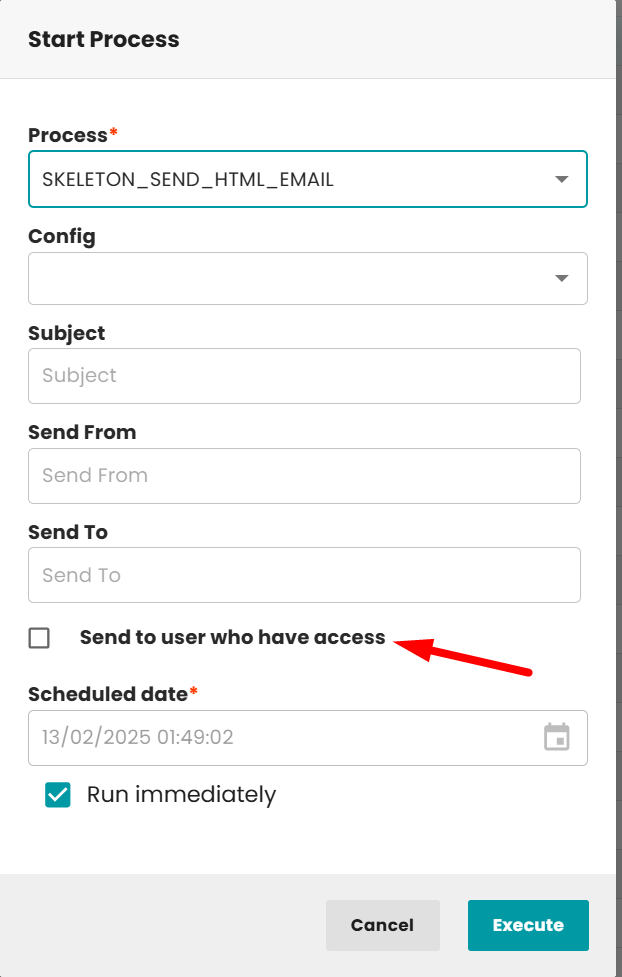
Send to All Users with Publication or Document Access
All users and teams with permission to a publication or document will receive the email.

All users will receive an email when the send email process is called. When used as a sub-process, provide the input parameter: sendEmailHavePermission.
The diagram shows the process running as a main process.
Combining with Download Links
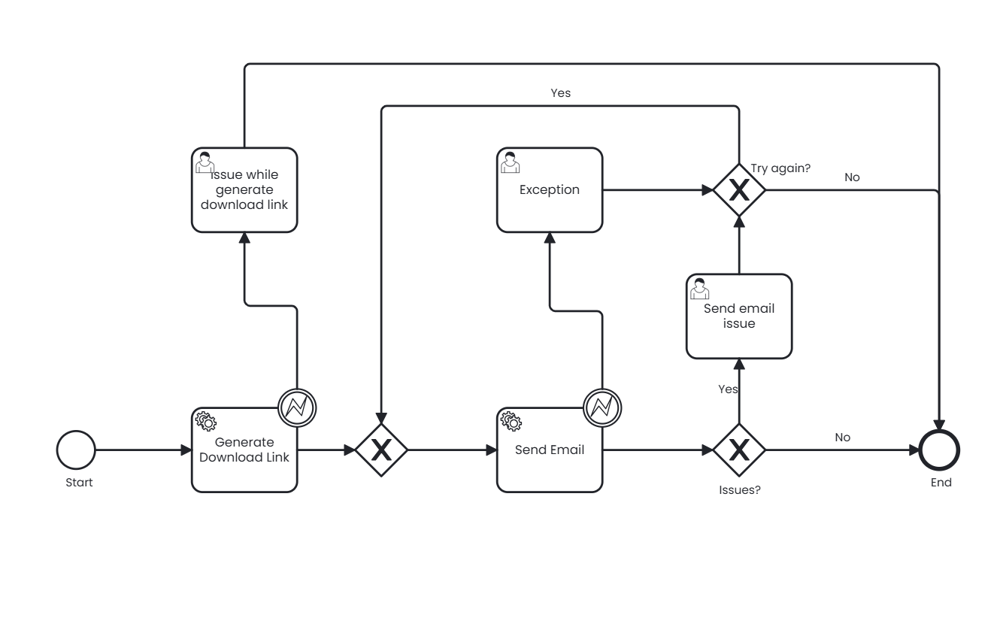
This process generates a download link and sends the email in one step. Call it as a sub-process to include a download link in the email.
Diagram:
Required parameters:
| Service task | Parameter |
|---|---|
| Generate download link | baseUrl → {{your domain}}/{{context-root from payara server}}/api/ |
expiration → 604800000 | |
downloadPath → {{pathToDownload}} | |
| Send Email | configId → {{configId in ISON}} (leave blank if already set from main process) |
Example: Integrate with Web2Publish
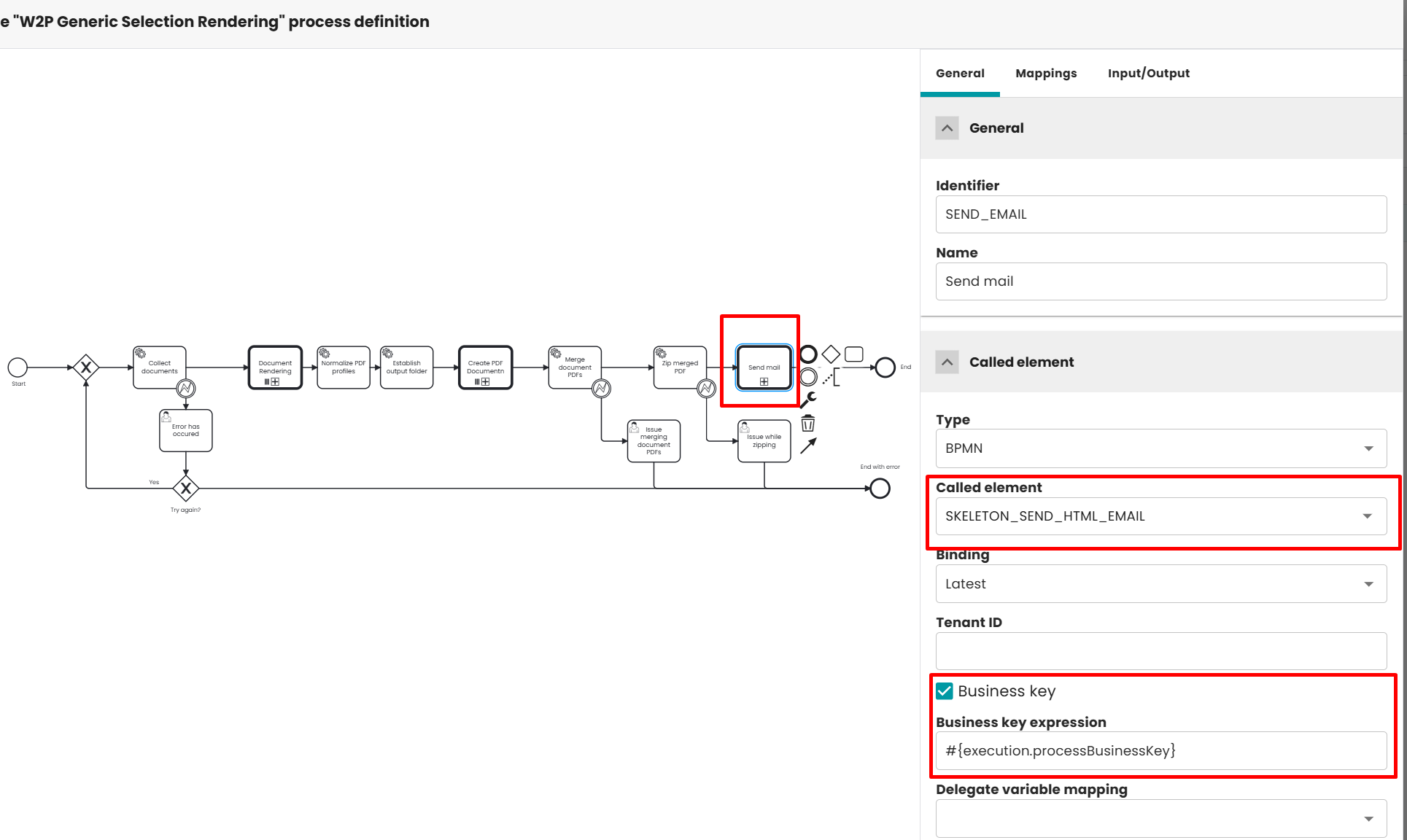
The email process can be integrated into any Camunda workflow. As an example, the following steps show how to send an email after a PDF has been rendered in a Web2Publish process (See Web2publish if you didn't install this part)
- Adjust the render process by ADDING call activity and point to
SKELETON_SEND_HTML_EMAILprocess
-
In
Mappingtab, enablePropagate all variables -
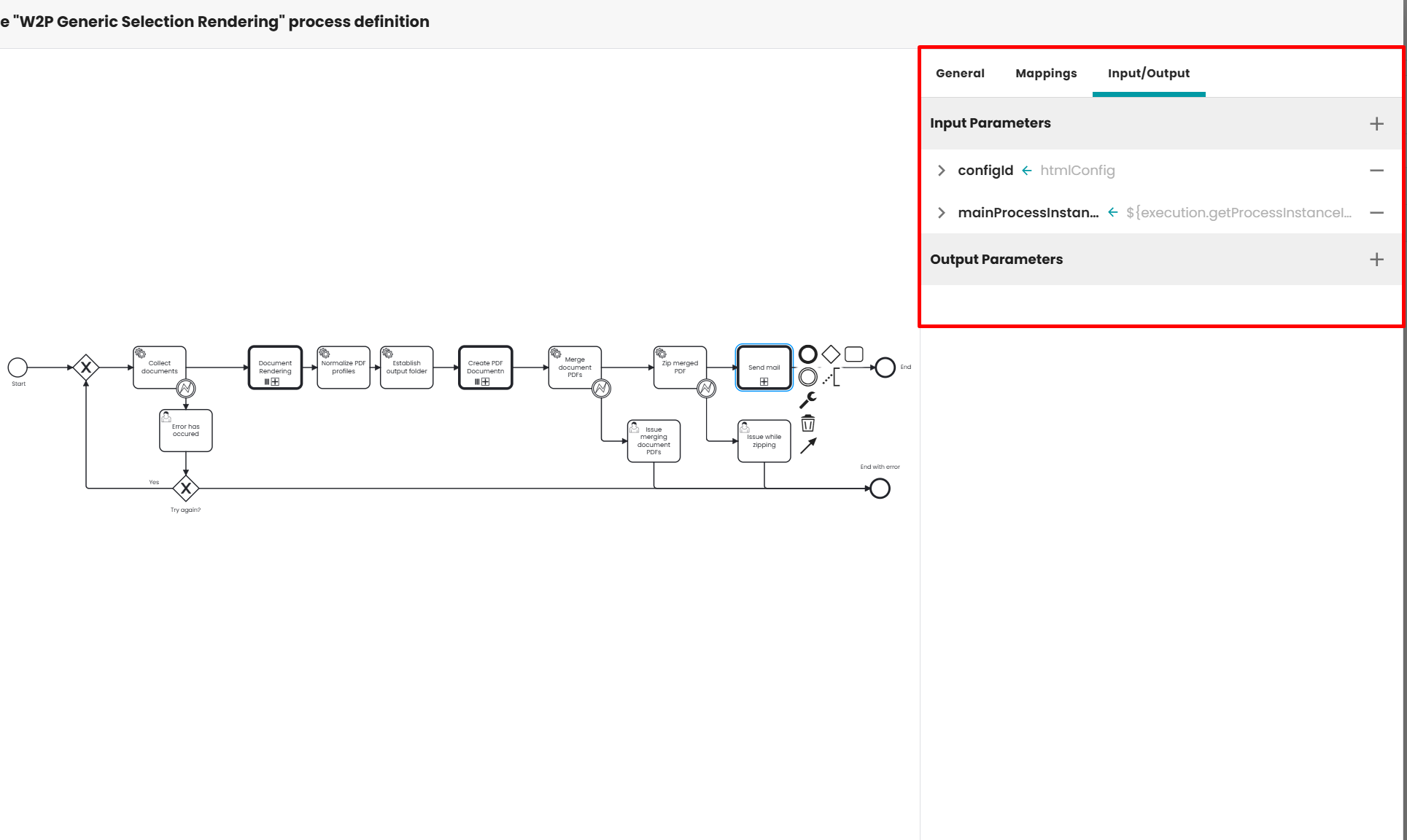
In
Input/Outputtab, adding 2 properties in Input parametersconfigId: {yourISONConfigId}mainProcessInstance:${execution.getProcessInstanceId()}
-
Re-deploy deploy Camunda process
-
Run the render process and verify that the email is sent.
Changelog
| Version | Description | Release | Date |
|---|---|---|---|
| 1.0 | Init document | release-1.0.0 | 17-Sep-2024 |
| 1.1 | Update diagram | release-1.0.0 | 27-Sep-2024 |
| 1.2 | Add multiple config | release-1.0.1 | 07-Nov-2024 |
| 1.3 | Create send email for document and send all users have access to publication/document have assigned | release-1.0.1 | 13-Feb-2025 |
| 1.4 | Combine download link to send email | main | 8th-Apr-2025 |